
You’ve got a Dell laptop, monitor, or desktop sitting in front of you. Maybe it’s not what you expected. Maybe it arrived damaged.
Or maybe you just changed your mind. Sorting out the Dell Return Policy can feel like a maze if you don’t know the right turns.
As of 2026, Dell gives standard consumer buyers a 30-day return window from the delivery date. But the exact steps and costs depend entirely on what you bought and why you’re sending it back. Let’s walk through exactly what applies to your situation.
Quick Answer
The Dell Return Policy gives you 30 days to return most standard products. You need the original packaging and all accessories. Start the return online at Dell’s support site.
Shipping is free for defective items. Refunds usually hit your account within 5 to 7 business days after Dell receives the return.
First, Figure Out Which Category You’re In
Before you do anything else, figure out your buyer category. Dell has different rules for consumers, businesses, Outlet shoppers, and custom system buyers. This is the first big decision branch in your return process.
The table below shows the basic return window for each category. Find your exact situation.
| Buyer Profile | Return Window | Restocking Fee (as of 2026) |
|---|---|---|
| Standard Consumer (Off-the-shelf) | 30 days | 0% |
| Consumer (Custom Built) | 30 days | Up to 15% |
| Dell Outlet (Refurbished) | 15 days | 0% (usually) |
| Business / Premier Account | Varies (check contract) | 0% to 20% |
Consumer Purchase, Standard Product, Within 30 Days
This is the most common scenario. You bought a laptop, desktop, or accessory from Dell.com as a regular consumer. You have 30 days from the delivery date.
This usually applies to Inspiron, XPS, and Alienware systems bought off the shelf.
The refund is typically full if the box is unopened or the item is like-new. You won’t pay a restocking fee as of 2026 for standard products. This is the easiest return path.
Consumer Purchase, Custom-Built System, Within 30 Days
Did you configure your own system? Maybe you upgraded the RAM, storage, or graphics card. This is a configured-to-order system.
These returns are allowed, but they have stricter rules. The system must be returned in like-new condition. You may face a restocking fee, typically up to 15% of the purchase price.
This covers Dell’s labor and the fact that they can’t sell it as new anymore.
Dell Outlet Purchase, Within 15 Days
The Dell Outlet sells refurbished and clearance items. The return window is shorter here: just 15 days from delivery.
The same condition rules apply. The item must include everything it came with. Restocking fees are less common here, but the window is tight.
Do not wait.
Business / Premier Account Purchase
Business returns depend entirely on your contract. Some businesses have a 30-day return policy. Others have a 15-day window.
Some have no returns at all on custom hardware.
If you are a business customer, check your Dell Premier account portal. Your negotiated terms override the standard policy. The restocking fee is often higher here, sometimes 15% to 20%.
Outside the Return Window (Defective Only)
If you are past the return window, the return policy no longer applies. You are now in warranty territory.
If the product is defective, use your Dell warranty to get a repair or replacement. This is not a return. It is a warranty claim.
Do not try to return a non-defective item outside the window. It will be rejected.
The Big Branching Question: Is It Defective or Did You Change Your Mind?
Okay, you know your category. Now answer this: why are you returning it? “Defective” and “Changed mind” are two completely different branches in this decision tree.
They have different rules and different costs.
Branch A: Defective, Damaged, or Wrong Item
If your item arrived damaged, is defective, or is the wrong model, you are on the easiest branch. Dell pays for return shipping. You get a full refund including original shipping costs.
This is sometimes called a “DOA” (Dead on Arrival) claim. Use the same return portal. Select “Defective” as the reason.
You will get a prepaid shipping label. Your refund starts processing as soon as the return is scanned by the carrier in some cases.
Per the FTC’s Mail Order Rule, companies must cover return shipping for defective or wrong items when the customer didn’t cause the problem.
Branch B: Changed Mind, No Longer Needed, or Found a Better Deal
If you simply don’t want it anymore, the costs change. You are responsible for return shipping. Dell deducts the shipping label cost from your refund if you use their label.
The item must be in like-new condition. It must have the original box, foam, cables, manuals, and any freebies that came with it. Missing something can result in a partial refund or outright rejection.
The Restocking Fee Trap: Who Actually Pays It
This is the number one surprise people hit. A restocking fee is a percentage deducted from your refund. As of 2026, the rules are clearer but still easy to miss.
- Standard consumer products bought off the shelf: no restocking fee.
- Custom-built / configured-to-order systems: up to 15% restocking fee.
- Business / Premier returns: the fee depends on your contract. It can be 0%, 15%, or even higher for specialized hardware.
- Outlet returns: generally no fee, but the shorter window applies.
- Order cancellations: if you cancel before the item ships, there is no restocking fee.
The fee shows up during the online return process before you confirm. You can back out if you don’t want to pay it.
How to Start a Return (Step by Step for Each Scenario)
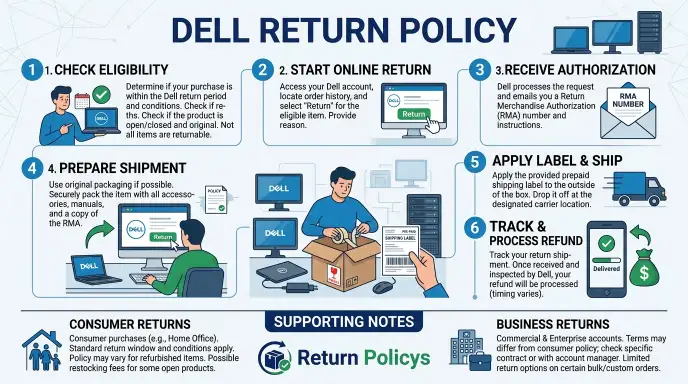
Once you know your category and your reason, the process is fairly standard. You’ll use Dell’s online return portal. Here is the breakdown for each scenario.

Image source: Bing (Web (fair-use with source credit))
If You’re a Consumer with a Standard Product
- Go to Dell’s support site and click “Returns”.
- Enter your order number or Dell Service Tag.
- Select the item you want to return.
- Choose your reason (defective or changed mind).
- Print the return label and packing slip.
- Pack the item in the original box with all accessories.
- Drop it off at the carrier location.
- Keep the tracking number.
If You’re a Consumer with a Custom-Built System
The steps are the same, but the system is tied to your Dell account. You must use the same account you ordered with.
You will see the restocking fee percentage during the online process before you confirm. The system will ask you to verify the serial number (Service Tag) on the box. Make sure it matches.
If You’re a Business Customer
Log in to your Dell Premier portal. Go to the “Orders” section and find the order. The return option is there.
For large enterprise accounts, you might need to contact your Dell sales rep or account manager to initiate the return. The portal will show if you have a restocking fee. You may also have the option of “Advanced Replacement” where Dell ships the replacement first.
If You’re in the Dell Outlet
Use the standard return portal for consumers. Enter your order number. The system knows it’s an Outlet purchase.
You will see the 15-day window enforced. If you are past 15 days, the portal will block the return. Act fast.
What Happens After You Ship It Back (Timeline and Refund Types)
You’ve dropped the package at the carrier. Now what? The clock starts ticking, but not the way you might think.
Dell doesn’t process your refund the moment the tracking shows “delivered.” There are steps in between.
| Step | Estimated Time | Notes |
|---|---|---|
| Carrier delivers to Dell warehouse | 2 to 5 business days | Depends on distance and carrier speed |
| Warehouse receives and inspects | 1 to 3 business days | They check condition, accessories, and serial number |
| Refund is initiated | Same day as inspection | Dell sends notification |
| Refund posts to your payment method | 3 to 5 business days after initiation | Credit card processing time varies |
The total from drop-off to money in your account is usually 7 to 14 business days. Remote areas can take longer.
How refund type depends on your payment method
If you paid with a credit card or debit card, the refund goes back to that card. Dell does not issue store credit by default for standard returns.
If you used a Dell Advantage Rewards credit card, the refund goes back to that card’s balance. Points you earned from the purchase may be reversed.
If you used a gift card, the refund goes back to the same gift card.
If you used multiple payment methods, Dell splits the refund proportionally. This can take a few extra days to reconcile.
What if the refund doesn’t show up?
Refund delays usually happen for one of three reasons. First, the warehouse hasn’t finished inspecting the item. Second, the item was missing parts and Dell is waiting for your response.
Third, the refund was issued but your bank is slow to post it.
Check your Dell order status page first. If it says “Refund Processed,” the money is with your bank. Call your bank if it hasn’t appeared after 5 business days.
Partial refunds: when they happen
A partial refund means Dell kept some of your money. This happens when:
- The item arrived with damage you caused.
- Accessories are missing.
- The original box or packaging is missing.
- The restocking fee (for custom systems) was applied.
Dell will usually email you explaining the deduction. You can dispute it if you disagree, but you need proof the item was complete when shipped.
The Trade-In Shortcut: When Returning Isn’t Your Best Option
Sometimes a straight return isn’t the smartest move. If you’re outside the return window, or if you want to upgrade, Dell’s trade-in program can save you money and hassle.
The trade-in program works differently than a return. You send in your old Dell device (or even a non-Dell device). Dell gives you a credit toward a new purchase.
You don’t get cash back, but you do get a discount on a new system.
When trade-in beats a return
- You’re past the return window. The 30 days are up. You can’t return it, but you can trade it in for credit.
- Your device has minor damage. A dent or a cracked screen won’t stop trade-in. It will lower the value, but it’s better than nothing.
- You want to upgrade anyway. If you’re buying a new Dell, trade-in gives you instant credit. You don’t have to wait for a refund.
- You have old hardware lying around. Even if it’s not the laptop you bought last week, you can trade in older devices.
When a return is still better
- You’re within the return window and want cash back. Trade-in only gives credit. If you need the money, return it.
- The item is defective. A return with free shipping is better than a trade-in with reduced value.
- You want to switch brands. Dell trade-in credit is only usable on Dell.com.
How the trade-in process works
You get an instant estimate online by entering the model and condition. Dell sends you a prepaid shipping label. You ship your device.
After inspection, Dell confirms the value and applies it to your new purchase.
You can combine trade-in credit with other promotions. Trade-in values typically land between 50% and 70% of what you’d get selling it yourself. The convenience is real.
Six Mistakes That Will Get Your Return Denied
Dell rejects returns more often than you’d think. These six mistakes are the most common reasons.
Mistake 1: Missing the return window by even one day
Dell’s system is strict. If the portal shows you’re past 30 days (or 15 for Outlet), it won’t let you start the return. No exceptions unless you have a valid defect claim under warranty.
Mistake 2: Not including the original packaging
Dell requires the original box, foam inserts, and all packaging materials. A generic box or bubble wrap is not enough. If the item arrives damaged because of poor packaging, Dell may deny the return or charge a fee.
Mistake 3: Leaving personal data on the device
If you return a laptop or desktop with your personal files, passwords, or account information still on it, Dell may refuse the return for security reasons. Wipe the drive completely. Remove any hard drive if you’re not including it.
Mistake 4: Missing accessories, cables, or documentation
The power adapter, cables, manuals, and even the plastic bag the laptop came in must be included. Check the box against the packing slip. Anything missing can result in a partial refund or denial.
Mistake 5: Using the wrong shipping label
If you’re a consumer and you use a business account’s label, or vice versa, the return may be rejected. Make sure the label matches the return authorization exactly.
Mistake 6: Returning a custom build without the serial number matching
Custom systems are tied to a specific Service Tag. If you return the wrong system, even if it’s the same model, Dell will reject it. Verify the Service Tag on the box matches the one in your account.
Pro Tips from Experienced Buyers
These are practical tips that frequent Dell customers rely on. They’re not official policy, but they work.
Take photos before you ship
Photograph every angle of the item. Photograph the serial number. Photograph the box contents spread out.
If Dell claims damage or missing parts later, you have proof.
Use the original box with the foam inserts
Dell’s packaging is designed to protect the item during shipping. If you lost the box, you can order a replacement from Dell. It’s worth the cost.
Generic packaging increases your risk of damage in transit.
Call support if the online portal gives you a problem
The online system is automated. If you’re just one day past the window or have a special situation, calling customer service can sometimes get you a manual override. Be polite and explain clearly.
Check for restocking fees before you confirm
During the online return process, Dell shows the restocking fee amount if it applies. Don’t click “Submit” without checking. If the fee seems wrong, call support before proceeding.
Return during a promotion window if possible
Dell sometimes extends return windows during the holiday season. If you’re close to the 30-day mark and the holiday extension is active, you get extra time. Check Dell’s homepage for announcements.
Use a trackable shipping method
The return label Dell provides is trackable. But if you choose your own shipping method, make sure it has tracking and insurance. Loss in transit is your problem until Dell scans the package.
The Decision Guide: If You’re Still Unsure, Start Here
If you’re reading this and you still don’t know whether to return, trade in, or keep the item, run through this simple decision tree.
Step 1: Are you within the return window?
- Yes. Go to Step 2.
- No. Are you within the warranty period? If yes, you have warranty service, not a return. If you want to get rid of the item, consider trade-in or selling it yourself.
Step 2: Is the item defective, damaged, or wrong?
- Yes. Start a return online. Select “Defective” as the reason. Dell pays shipping. Full refund.
- No. Go to Step 3.
Step 3: Do you have the original packaging and all accessories?
- Yes. Go to Step 4.
- No. Find the original packaging or order a replacement box. Without it, the return may be denied. If you can’t get it, consider trading in or selling the item locally.
Step 4: Is this a custom-built system?
- No. Standard consumer product. No restocking fee. Start the return.
- Yes. Prepare for a possible restocking fee up to 15%. Start the return. Accept the fee or cancel the return.
Step 5: Do you need the money back, or is credit okay?
- Need cash back. Return the item.
- Credit is fine. Consider trade-in. You get a discount on a new purchase, and you don’t have to worry about packaging or restocking fees.
That’s the entire decision path. Most people land on the standard return branch. If you do, follow the steps in the “How to Start a Return” section above and you’ll be fine.